
How to Add Nexus Cameras to a Montavue Classic NVR System
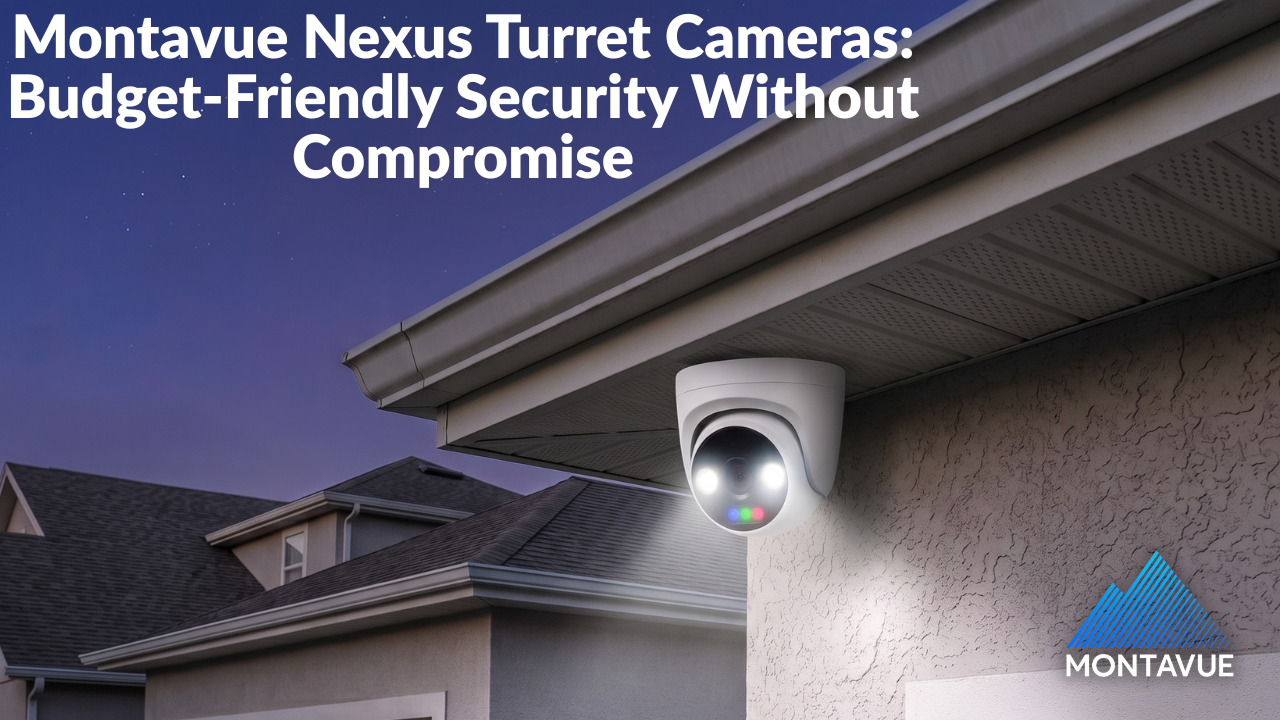
Montavue’s new Nexus camera line offers a range of features and capabilities, but if you’re using a Montavue Classic NVR with a model number beginning with MNR, adding a Nexus camera requires a few additional steps.
Unlike Classic cameras, Montavue Nexus cameras are not plug-and-play with Classic NVR systems. Nexus cameras must be connected using the ONVIF protocol. Because of this, the camera’s built-in AI features will not be available directly through the Classic NVR.
However, you can still use a Nexus camera for video recording and standard motion detection, and some compatible NVRs can utilize AI by NVR.
How to Add a Montavue Nexus Camera to a Classic NVR
1. Connect the Nexus Camera
First, connect your Nexus camera to your network.
If your cameras are connected through a PoE switch, you can use the NVR’s camera menu to locate the Nexus camera’s IP address.
On your NVR, navigate to:
Main Menu → Camera (or Remote Device) → Camera List (or Add Camera)
Then click Search Device in the top-left corner.
The NVR will search the network for connected cameras. Locate your new Nexus camera in the top list and make note of its IP address.
2. Finding a Nexus Camera Connected Directly to the NVR
If your Nexus camera is plugged directly into one of the NVR’s PoE ports, you may need to enable Bridge Mode before you can locate the camera's IP address.
On the NVR, go to:
Main Menu → Network → Switch → Bridge Mode → Apply
The NVR will reboot after applying the setting.
Once the NVR has restarted, return to the camera menu and click Search Device again. You should now be able to locate the Nexus camera and its IP address.
3. Initialize the Nexus Camera
Once you have the camera’s IP address, enter it into the address bar of a web browser on a computer connected to the same network.
You should be prompted to initialize the camera.
Follow the on-screen instructions to complete the initialization process. Once the camera has been initialized, return to your Montavue NVR.
4. Add the Nexus Camera to the NVR
Return to the NVR’s Camera List page and click Search Device in the top-left corner.
Locate the newly initialized Nexus camera in the list and check the box next to it.
Then click Add below the top table.
The Nexus camera should now appear in your NVR's camera list.
Because the camera is being added using ONVIF, you may need to enter the appropriate camera credentials if prompted.
Do Nexus Cameras Have AI Features on a Classic NVR?
The AI features built into Nexus cameras will not be available directly through a Montavue Classic NVR when the camera is connected using ONVIF.
However, some Classic NVR models support AI by NVR, which can provide AI-based functionality using the NVR rather than the camera itself.
4 Series, 5 Series, and 6 Series NVRs support AI by NVR. The number of cameras that can use this functionality depends on the specific NVR model and its capabilities.
If your NVR does not support AI by NVR, the Nexus camera can still be used for basic video recording and standard motion detection.
Need Help Adding a Nexus Camera?
If you have questions about adding a Montavue Nexus camera to a Classic NVR system, contact Montavue Technical Support.
Our technical support team is available Monday through Friday, 8:00 AM–5:00 PM Mountain Time at (406) 272-3479.